💡 Features 10 / 10
⚙️ Installation 9.9 / 10
👍 Ease of Use 9.8 / 10
📞 Support 9.9 / 10
🏷️ Pricing 9.9 / 10
Written By Justyn Newman Former Lead Cybersecurity Editor
Qustodio Overview
After in-depth testing, I found that Qustodio is an excellent parental control suite for protecting your kids . It lets you limit screen time, track location, block unsafe apps/websites, monitor messages for suspicious activity, and more. Plus, it’s extremely easy to use, meaning even non-tech-savvy parents can set it up to protect their family.
It’s not the cheapest option, but you can try Qustodio risk-free because all its paid subscriptions come with a 30-day money-back guarantee. There’s also a lengthy free trial that lets you try all the app’s premium tools without spending anything.
Try Qustodio risk-free
In a Rush? Here’s a 1-Minute Summary
- Several monitoring features . Qustodio includes web filtering, screen time limiting, location tracking, and various other tools to monitor and protect your kids’ activity. Read more about Qustodio’s features .
- Straightforward installation . It’s easy to install and set up Qustodio on your kids’ devices, regardless of the platform. Learn about my installation experience here .
- Beginner-friendly design . The Qustodio apps are easy to navigate and use, even for parents who aren’t tech-savvy. Discover how intuitive the apps are .
- Helpful support . Getting help for Qustodio is easy, especially if you get the Care Plus option. Learn about all of Qustodio’s support options here .
- Reasonable pricing . It’s not the cheapest option, but the variety of features makes Qustodio worth the cost. See a detailed comparison of Qustodio’s pricing here .
Secure your kids with Qustodio
Feature variety is among Qustodio’s biggest strengths . The app has many tools to help you manage and monitor your kids’ activity. Whether setting screen time limits, restricting certain apps, or monitoring your kids’ location, Qustodio has every important parental control tool you’ll need to keep your kids safe.
One thing worth noting is that Qustodio’s features work slightly differently on iOS devices due to the operating system’s restrictions. For instance, the call & messages feature must be set up on a macOS or Windows desktop first and then synced to the iOS device to function properly.
Also, Qustodio on iOS also creates a VPN for monitoring purposes and routes your kids’ traffic through this VPN to ensure monitoring can be enforced. This is why you may notice the VPN symbol at the top of your kids’ iOS device after setting up Qustodio.
Web Filter
Qustodio has one of the best web filters available in a parental control app . It gives you full control over the websites your kids can visit, letting you block specific websites or entire categories that you think are inappropriate. Once the filter is active, your kids won’t be able to visit the specified websites, and you’ll get alerts every time they try to.
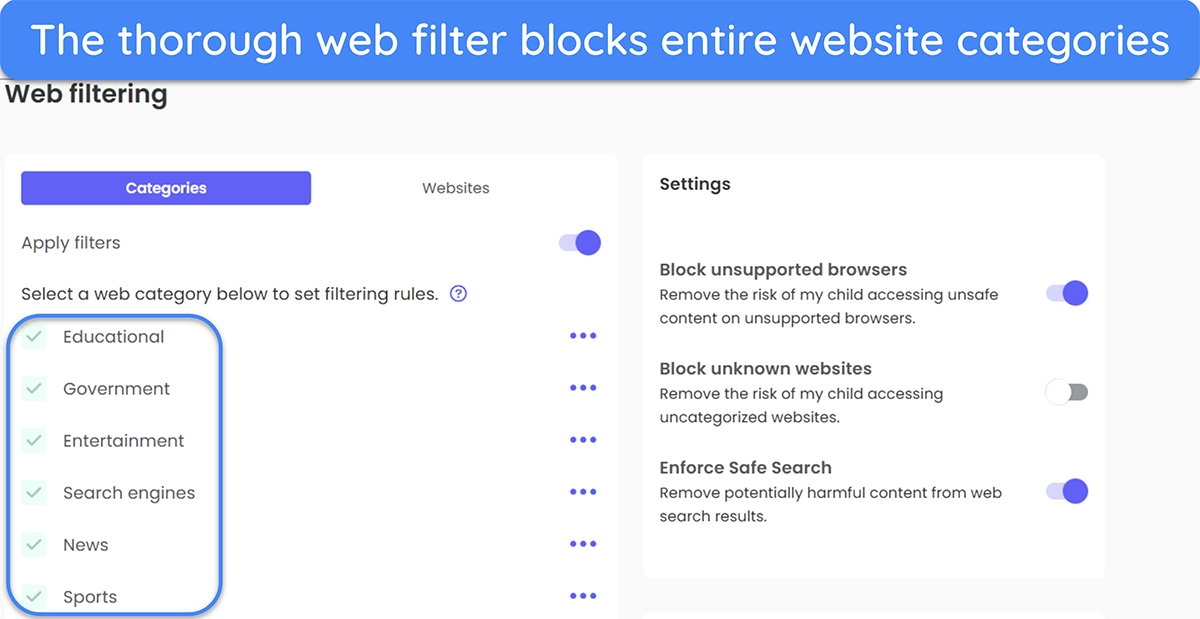
Another highlight is that Qustodio’s web filter can help enforce additional security by blocking any unrecognized websites, enforcing Safe Search, and blocking unsupported browsers. Stopping unsupported browsers is especially helpful, as it ensures your kids don’t accidentally use browsers with vulnerabilities that attackers could exploit.
Screen Time Limiting
Qustodio makes it simple to customize how long your kids use their devices . The screen time limiting feature lets you specify a screen time allowance for your kids, ensuring they don’t use devices more than they’re allowed to.
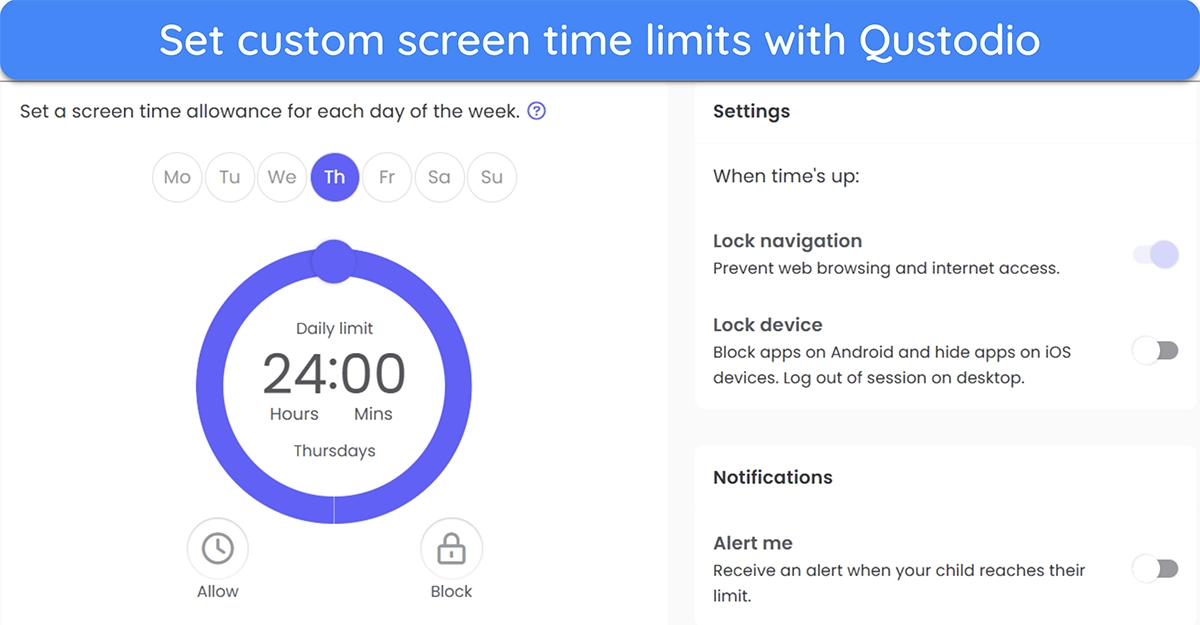
I also like that you can choose what happens when kids use all their screen time . You can either block internet access on their devices or block all apps entirely and lock them out of the device.
Routines
Qustodio lets you set specific routines on your kids’ devices , ensuring they always do what they should at specified times. You can set a study routine that only lets them access educational websites or a focus routine where they’re locked out of the internet and have to focus on any tasks they must complete.
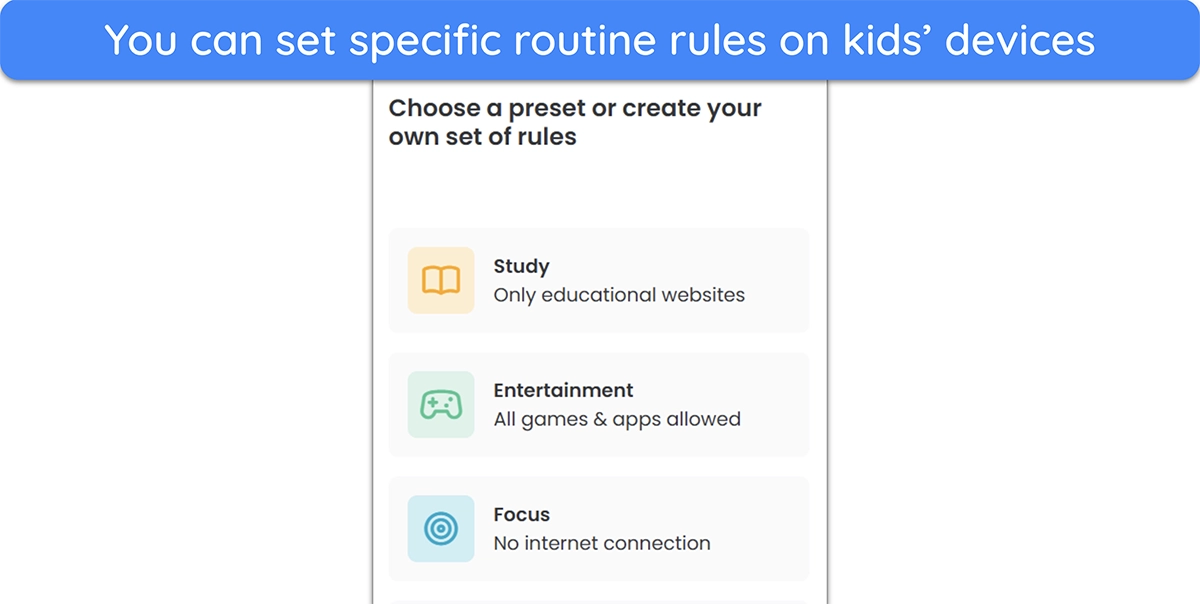
I especially like that routines in Qustodio are highly customizable . You can set them for specific times or days and fine-tune what your kids can do. This ensures that kids never use their devices to procrastinate when they’re supposed to be studying or focusing on their school work.
YouTube Monitoring
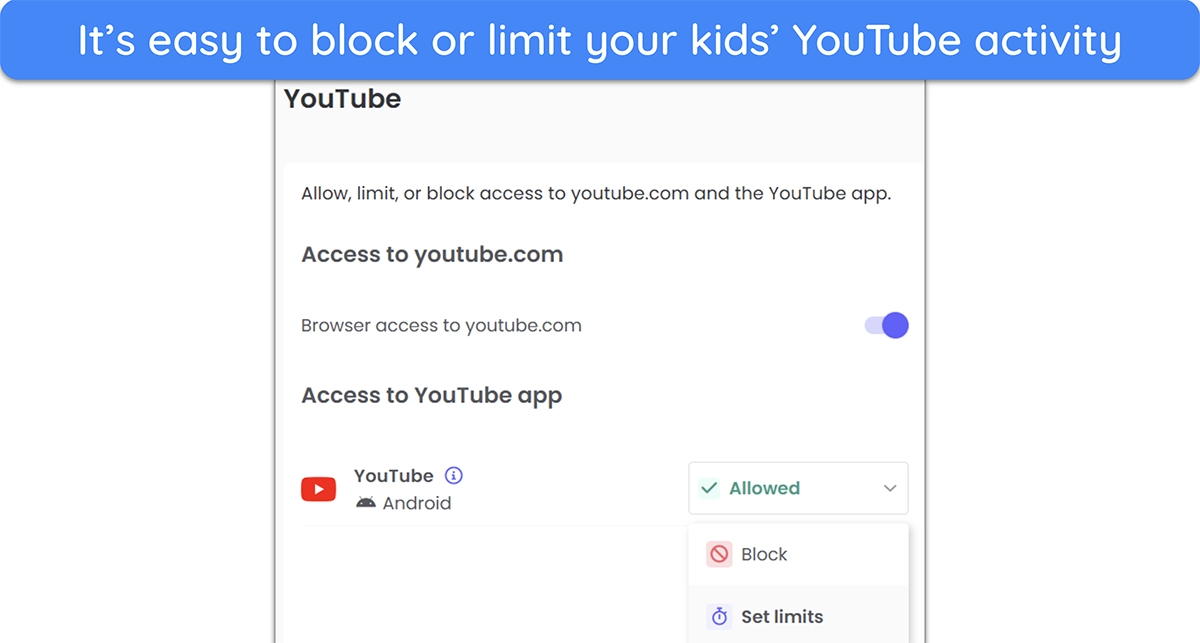
Since YouTube is where kids often waste the most time, I like that Qustodio has a reliable YouTube monitoring feature that lets you manage how long they use the platform . This feature lets you set exactly how long your kids can watch YouTube in a day and locks them out of the app and website once their time limit is exceeded.
App and Game Rules
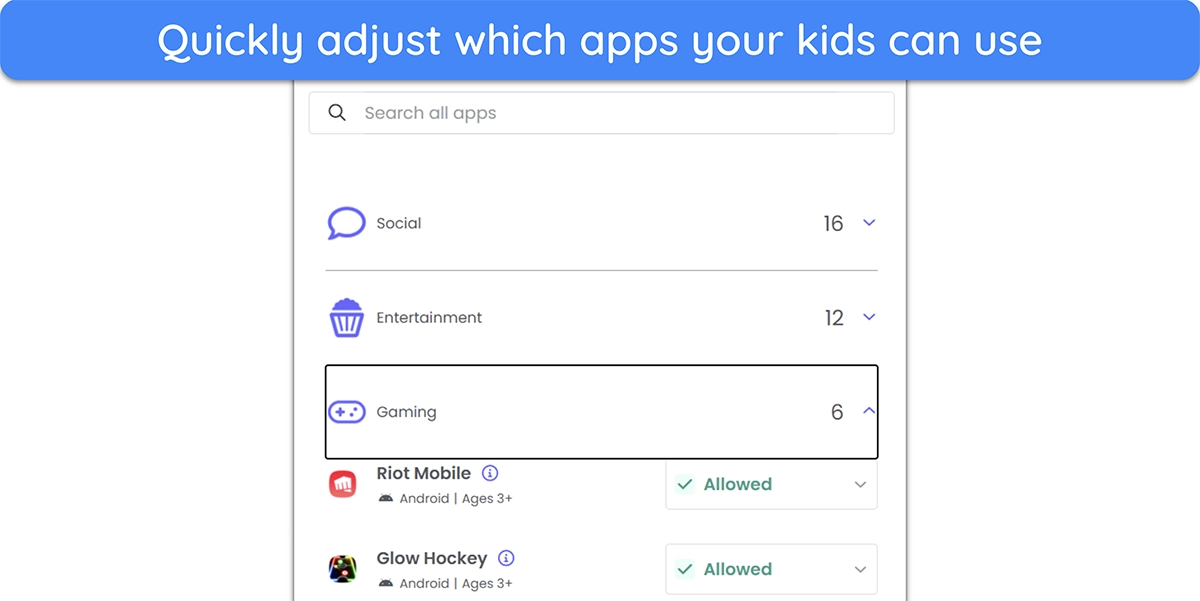
If you’re worried about kids spending too much time on games, you’ll be pleased to know that Qustodio provides complete control over your kids’ app and game activity . You can specify which apps/games are allowed and which are blocked, and you can even set time limits on the games and apps that kids are allowed to access.
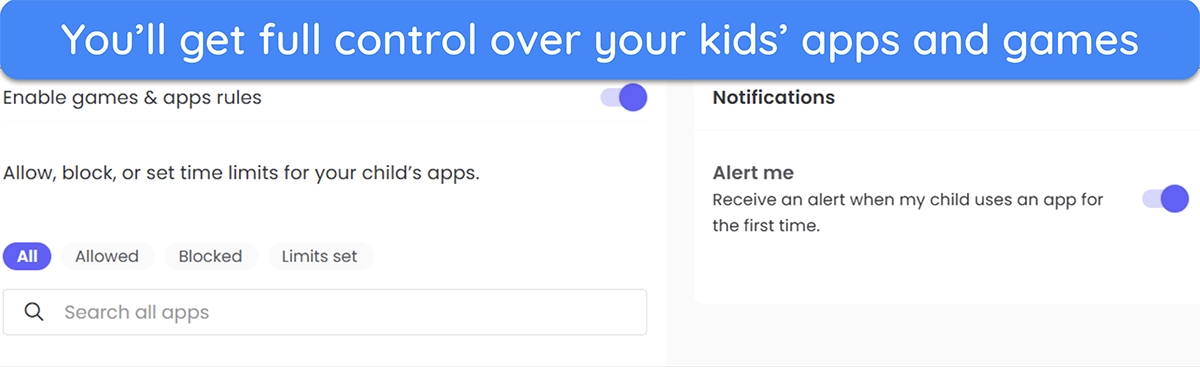
You’ll also get alerts whenever kids use a new app or game , letting you instantly decide whether they’re allowed to use it or if it should be blocked. Another highlight is that this feature splits apps and games into various categories, letting you quickly navigate through all the apps your kids use to decide which ones they can continue to access.
Call, Message, and Social Media Monitoring
Monitoring your kids’ call and message activity is crucial to keeping them safe . Thankfully, Qustodio offers a reliable monitoring tool that lets you see your kids’ text messages and see who they’re calling. This lets you remotely supervise all their communication and quickly see if they’re receiving any concerning messages or calls.
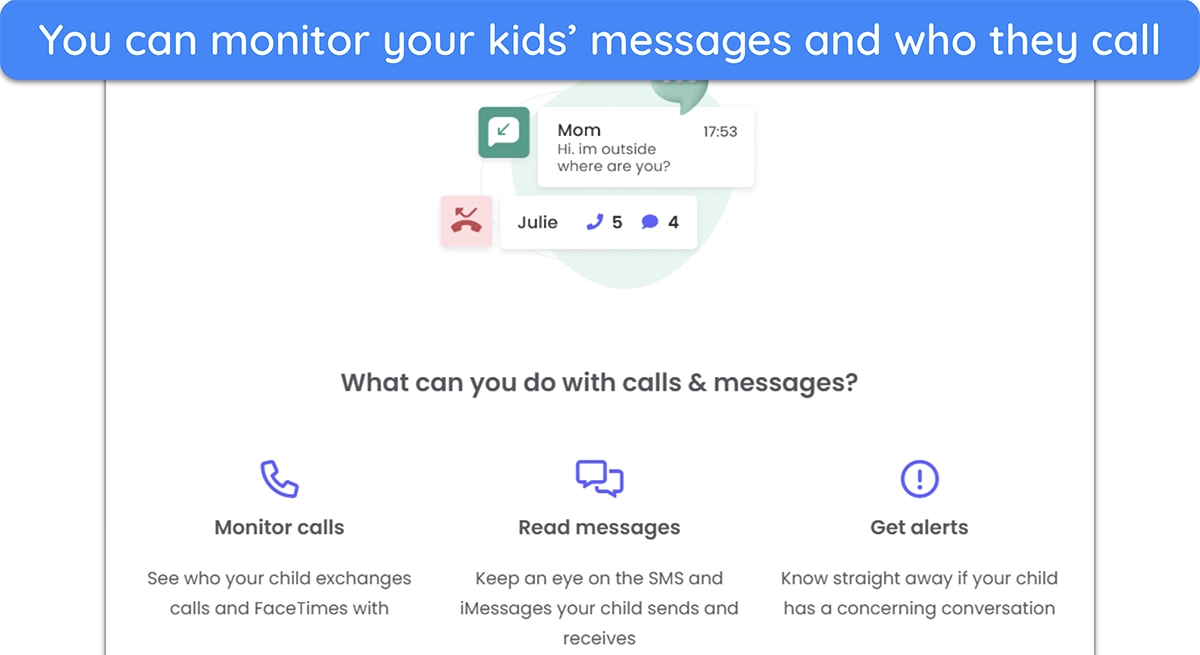
Another highlight of this feature is that Qustodio automatically alerts you when a message has suspicious content . The alerts feature uses AI to determine whether a text message has alarming content and lets you know if it’s something to be concerned about.
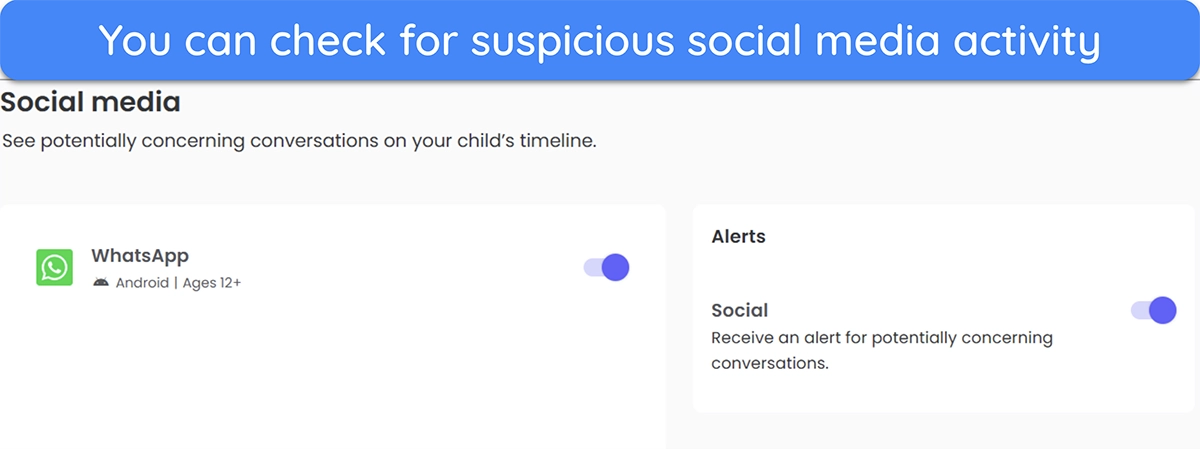
What’s great is that Qustodio’s monitoring also extends to social media apps . Whether your kids use WhatsApp, Instagram, or something else to talk to their friends, you can still monitor all their messages and quickly see if there’s any concerning content in the messages.
Location Tracking
Knowing where your kids are at all times is essential, which is why I was pleased to see that Qustodio’s Family Locator offers regular location alerts . It monitors your kids’ location and updates it every few minutes to tell you exactly where they are and where they’re going.
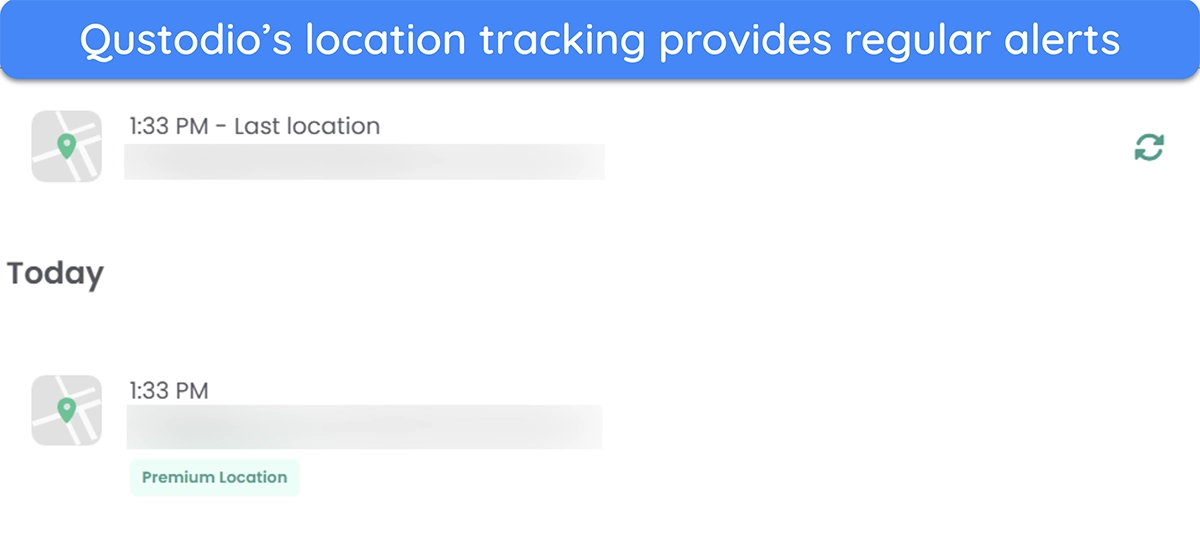
Qustodio also provides geofencing via its Family Locator feature . This feature has a My Places function that informs you every time your kids enter or exit a specified area.
SOS Button
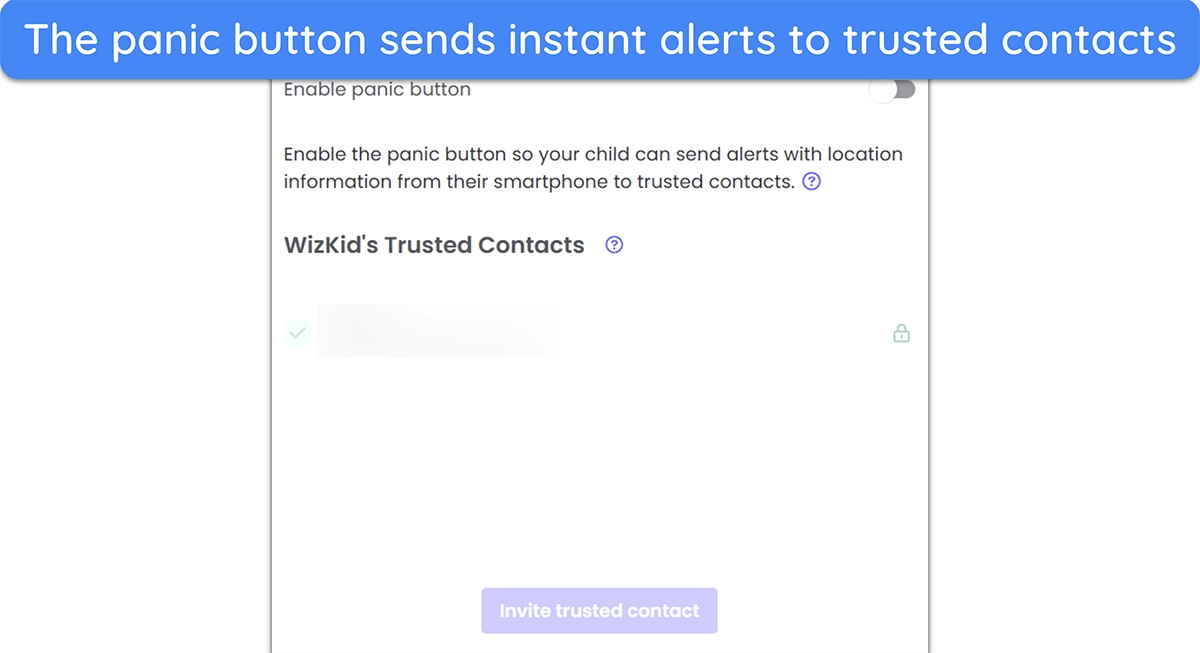
The SOS button is extremely helpful if your kids are ever in a dangerous situation . This button instantly sends panic alerts with their location to all trusted contacts, letting trusted adults immediately know where they are and that they need help. It’s really simple to set up and worth using because of the increased safety.
Parental Dashboard
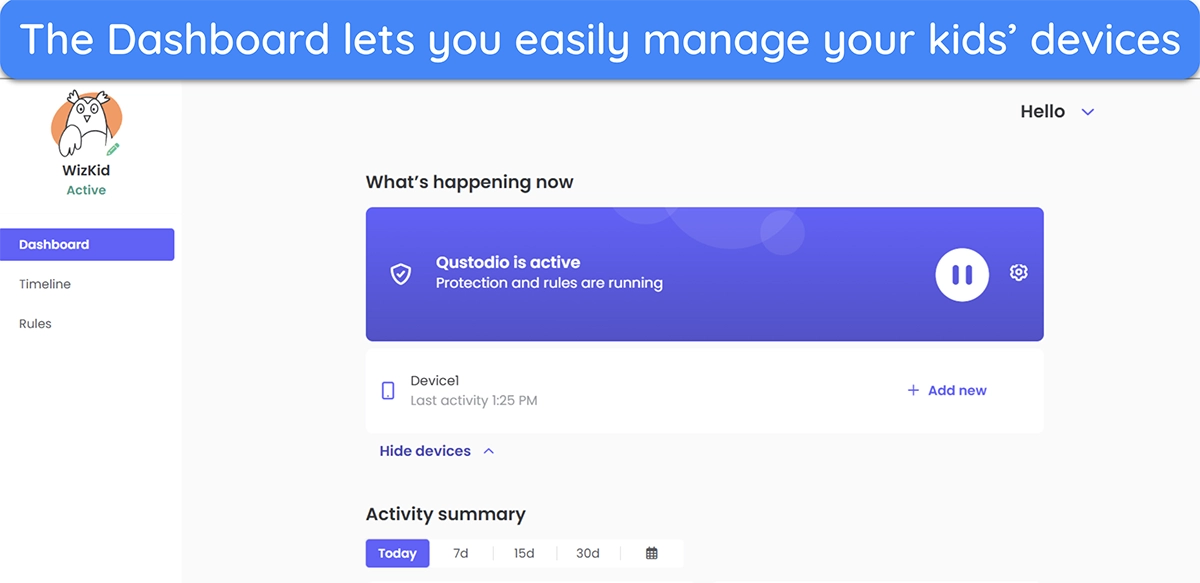
The parental dashboard is Qustodio’s centralized monitoring interface that you can easily access from the browser or the Qustodio for Parents app. This dashboard contains a summary of all your family members’ devices and a full overview of their recent activity. You can also use it to turn protection on/off on someone’s device or add new family members to monitor.
Timeline
The Timeline is a feature in Qustodio’s parental dashboard that lets you get all the details about what your kids have been doing. It lets you know what apps your kids used, their online web searches, their conversation history, and who they’ve been calling.
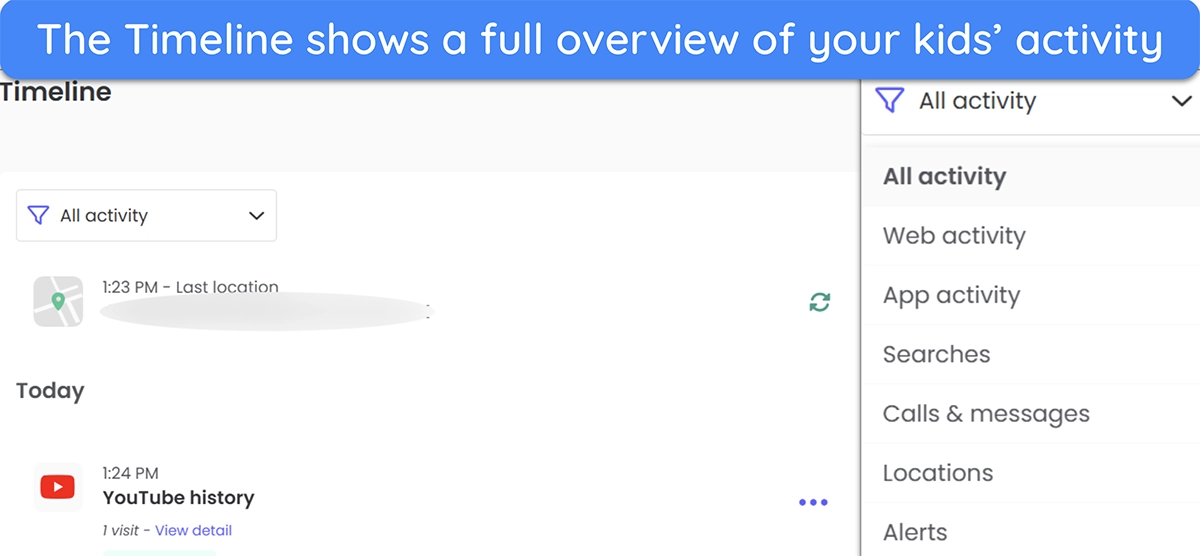
The Timeline also has a useful filtering feature that lets you look for specific things . If you’re worried about your kids searching for inappropriate things online, you can easily filter the timeline to show only search results, letting you quickly navigate through them.
Uninstallation Protection
Uninstallation protection is among Qustodio’s critical features . It ensures your kids can’t uninstall Qustodio and remove restrictions from their devices. Every time your kids attempt to remove Qustodio through their phone’s app drawer, it’ll just reappear on their device as if nothing happened.

Tech-savvy kids may try to circumvent this by going directly into the phone’s app settings and removing Qustodio from there. Thankfully, Qustodio’s uninstallation protection can block access to the device’s settings , ensuring there’s no way for your kids to remove Qustodio or its various protections from their devices.
The desktop app even lets you hide Qustodio , meaning your kids won’t know if it’s on their devices. Since it’s harder to enforce uninstallation protection on desktop platforms, using this feature is a great way to make sure kids don’t find and remove Qustodio.
Keep your kids safe with Qustodio
Installing Qustodio on your kids’ devices is simple – all you have to do is add your kids to your Qustodio account and set up the apps on their devices. The following guides will explain the whole process in a step-by-step manner.
Adding Kids to Qustodio
- Log into Qustodio . Log into your Qustodio account on the web portal and click on “Add child.”
- Enter your kid’s details . Enter the child’s details, like the name and year of birth.
- Install Qustodio . Install Qustodio on your child’s device once you’ve added them to your account.
- Supervise your kids . Click on “Supervise activity” after finishing the setup to begin monitoring your kids.
Installing Qustodio for Kids on Android
- Install the app . Access the Google Play Store and install the Qustodio Kids app.
- Choose the child . Tap “Protect this device” and choose the child to whom the device belongs.
- Provide permissions . Give permissions to the Qustodio Kids app, like location and usage tracking, so it can function properly.
- Complete the setup . Tap the “Finish” button to complete the Qustodio setup and begin monitoring your kid’s Android device.
Installing Qustodio for Kids on Windows
- Download the Windows setup . Access the Qustodio downloads page and download the Windows setup for the Qustodio Kids app.
- Install Qustodio . Run the setup and follow all steps to install the Qustodio Kids app on a Windows device.
- Access the login menu . Choose the “I already have a parent account” option to access Qustodio’s login screen.
- Log into the Qustodio app . Log into Qustodio’s Windows app by entering your account’s email address and password.
- Configure the device . Enter the device name. You can also choose to hide Qustodio’s presence on the device.
- Assign the device . Choose the child who owns the Windows device.
- Complete the setup . Click the “Finish” button to complete the setup and use Qustodio to monitor your kids’ Windows device activity.
Ease of use is among Qustodio’s significant strengths . Even parents who aren’t tech-savvy will have no problem using its various features to safeguard their kids and monitor their activity. Parents can either use the Qustodio for Parents app to monitor their kids or simply log into the online dashboard from any browser.
Qustodio for Parents App
The Qustodio for Parents app makes it easy to monitor your kids’ activity from your Android or iOS device . The apps include all of Qustodio’s features, like call monitoring, screen time limiting, web filtering, app filtering, and more, letting you easily make any configuration changes from the comfort of your phone.
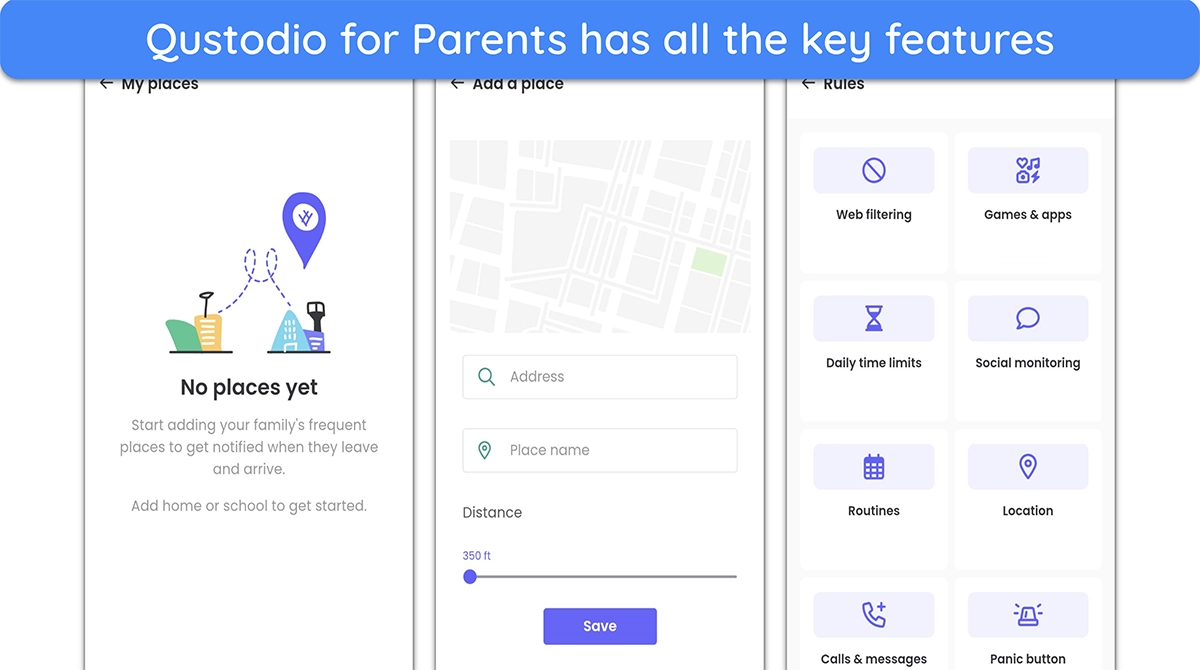
It’s worth noting that Qustodio’s Family Locator is only available within the app . It’s Qustodio’s main location tracking feature and also where you can set up geofencing for your family memoirs.
Managing Qustodio From the Browser
If you don’t have access to your phone, you can still monitor your kids at any time by logging into the Qustodio web portal . While the web portal doesn’t have the geofencing feature, it still has every other important Qustodio tool, giving you full control over your kids’ activity.
You can use the Qustodio web portal to see what your kids are doing, make configuration changes, and even add new family members to your account.
Online Knowledge Base
Qustodio has an incredibly informative online knowledge base where you can get lots of information about the app. It has troubleshooting tips, setup guides, and various useful support articles that’ll teach you all you need to know about the basics of the app. There’s even a helpful search function that lets you quickly find information regarding your specific problem.
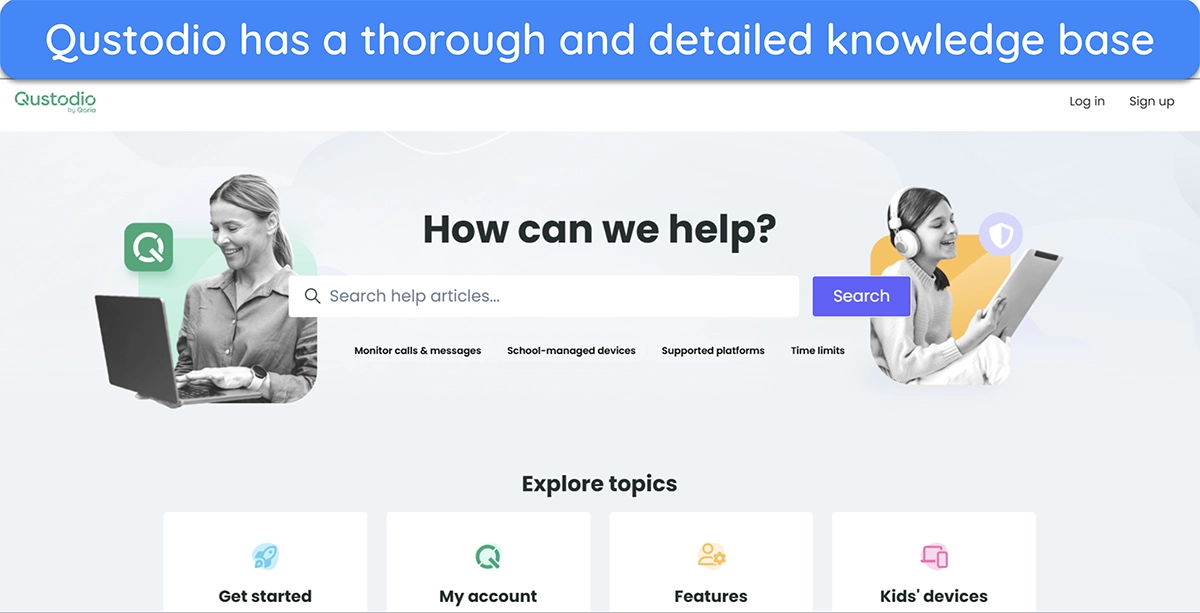
Note that the knowledge base is the only way to get help if you use Qustodio’s free plan . Free users can’t contact support via email or use Care Plus, which is disappointing. However, the fact that the knowledge base is so well-detailed helps make up for this.
Email/Ticket-Based Support
In my tests, it took under 24 hours to get a response from Qustodio’s email support . I also like that the response was highly detailed and answered all my questions. Plus, the agent gave a link to a helpful support article in the knowledge base that had more information regarding my query.
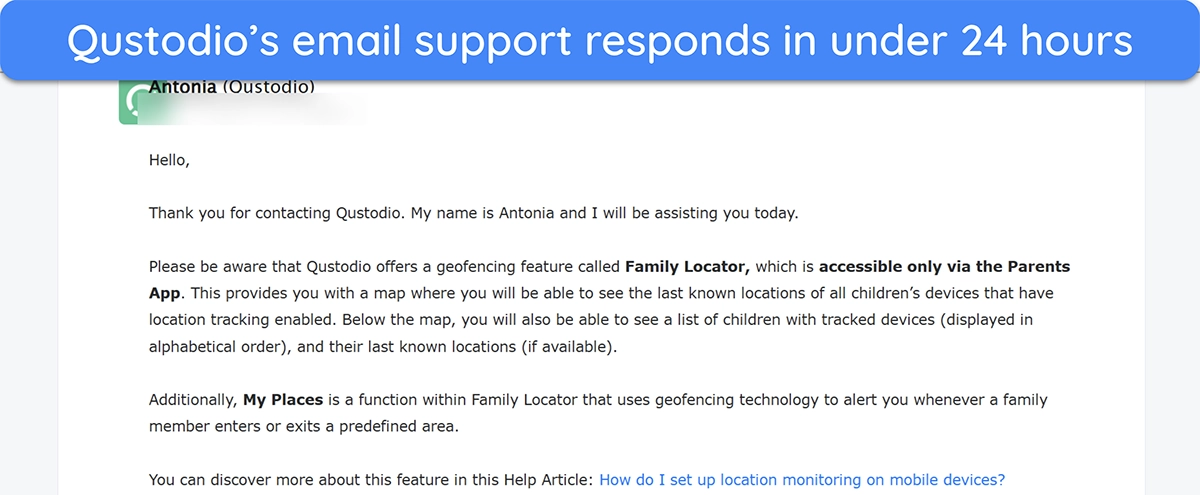
You can easily contact Qustodio’s email/ticket support through the “Get in touch” button available at the bottom of the online knowledge base. It’s worthwhile to be as detailed as possible when submitting a ticket to ensure the support agent can address all your queries.
Care Plus
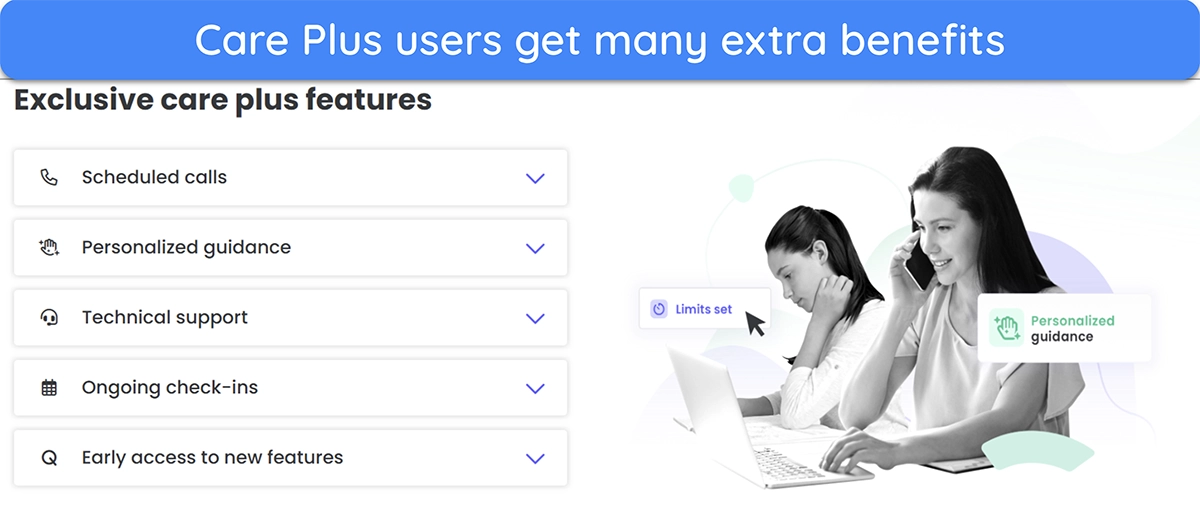
Care Plus also lets you get early access to new features , ensuring you get all the latest updates to Qustodio as quickly as possible.
Given how feature-rich and effective it is, I consider Qustodio worth the price . The premium subscriptions include many useful features that help ensure your kids are always protected. However, even the free plan has various useful tools, making Qustodio a solid choice whether you want to pay for a subscription or are looking for a free option.
Qustodio Free, Basic, and Complete
Qustodio offers a free plan and two paid subscriptions – Basic and Complete . The free plan is enough for basic monitoring, but you need one of Qustodio’s premium options if you wish to make the most of all the app’s key features, like alerts and location monitoring. The following table highlights the key differences between Qustodio’s free and paid plans:
| Free | Basic | Complete | |
|---|---|---|---|
| Web filtering | ✔ | ✔ | ✔ |
| Safe search | ✔ | ✔ | ✔ |
| Screen time limits | ✔ | ✔ | ✔ |
| Internet pause | ✔ | ✔ | ✔ |
| Game and app blocking | ✘ | ✔ | ✔ |
| Panic button | ✘ | ✔ | ✔ |
| Location monitoring | ✘ | ✔ | ✔ |
| Email support | ✘ | ✔ | ✔ |
| Custom routines | ✘ | ✘ | ✔ |
| Game and app limits | ✘ | ✘ | ✔ |
| Call and message monitoring | ✘ | ✘ | ✔ |
| AI-powered search and message alerts | ✘ | ✘ | ✔ |
| Saved location alerts | ✘ | ✘ | ✔ |
| Web activity alerts | ✘ | ✘ | ✔ |
| Care Plus | ✘ | ✘ | ✔ |
| Activity reports | 7 days | 30 days | 30 days |
| Devices protected | 1 | 5 | Unlimited |
| Price | Free | $54.95/year (67.94 with Care Plus) | $99.95/year |
From the table, it’s clear that Qustodio’s Complete plan is the best option , offering many useful alerting features, the Care Plus support system, comprehensive call & message monitoring, and more while supporting unlimited devices. It’s a little expensive, but the variety of tools and best-in-class support make it worth considering.
Basic is also a good option if you’re looking for simple protection, but its lack of message & call monitoring may be a deal-breaker for some. Also, it’s not the best choice for larger families, as it’s limited to 5 devices.
Free Trial
Money-back Guarantee
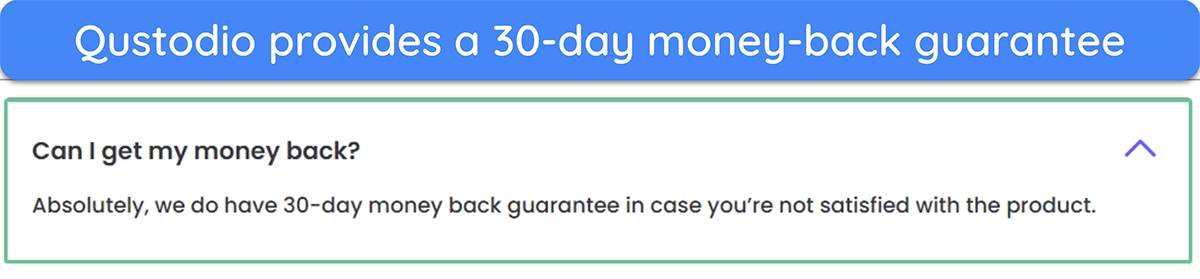
Qustodio’s paid plans come with a 30-day money-back guarantee , letting you get a full refund if you’re unsatisfied with the app’s performance. This month-long guarantee gives you plenty of time to try Qustodio risk-free and see if its features suit your requirements.
Bottom Line
Overall, Qustodio is easily one of the best parental control apps you can get . It has a comprehensive suite of features to monitor and manage your kids’ activity and location, ensuring they’re always protected against any threats. Plus, it’s extremely easy to use and set up, even if you aren’t that tech-savvy.
Although it isn’t the cheapest, Qustodio is worth the cost . The variety of tools and the Care Plus support available in the Premium subscription are worth the price. Plus, the 30-day money-back guarantee ensures you can try Qustodio risk-free . If unsatisfied, you can get a refund by contacting support.

- Features 10
- Installation 9.9
- Ease of Use 9.8
- Support 9.9
- Pricing 9.9