How to Get and Use NordVPN on Android — 2026 Setup Guide
- Written by Osama Zahid Cybersecurity Specialist
- Fact-Checked by Justyn Newman Former Lead Cybersecurity Editor
NordVPN is among the most popular VPNs available. It is frequently promoted by popular YouTubers and receives praise from various reputable sources, including us. However, what is the VPN like to use on mobile devices, and how can you get NordVPN on Android ?
After extensive testing, I found that NordVPN’s Android app is just as impressive as the desktop version. In this article, I’ll explain multiple methods to install NordVPN on Android and highlight some of the key features it offers on this platform.
Get NordVPN for Android
Editor’s Note: We value our relationship with our readers, and we strive to earn your trust through transparency and integrity. We are in the same ownership group as some of the industry-leading products reviewed on this site: ExpressVPN, CyberGhost, Private Internet Access, and Intego. That said, our detailed reviews follow a strict methodology that examines all relevant performance factors to help you arrive at your own informed conclusion.
Quick Summary: How to Get NordVPN on Android
- Purchase to NordVPN . Access the NordVPN website and choose an offer that suits you.
- Install NordVPN. Download NordVPN via the Google Play Store or sideload it using an APK from the official website.
- Use NordVPN. Run NordVPN, log in using your credentials, and secure your connection.
Getting NordVPN on Android: Detailed Steps
The following steps explain how you can get NordVPN on your Android device. You can get it by downloading it directly from the Google Play Store or by sideloading an APK that you can download from the official NordVPN website.
Before getting NordVPN on Android, it’s worth signing up for it through the official website.. This ensures you get the best price for your chosen offer and can use the 30-day money-back guarantee without issues if you’re unsatisfied.
Signing up for NordVPN
- Choose an offer. Access NordVPN’s website and pick an offer that suits your requirements.
- Confirm your details. Enter your email address and confirm the offer’s details before signing up.
- Purchase to NordVPN. Pay for NordVPN using your preferred method to begin the service.
Installing via the Google Play Store
- Open the Play Store. Access the Google Play Store on your Android device.
- Find NordVPN. Enter “NordVPN” in the search bar at the top and select the official app from the results.
- Install NordVPN. Tap the Install button to get NordVPn on your device.
- Open NordVPN. Tap the Open button to launch NordVPN once it’s installed.
- Use NordVPN. Log into NordVPN using the credentials you purchased with to start using it.
Sideloading via APK
- Find the APK. Search for “NordVPN apk” on Google and tap the official NordVPN website in the results.
- Download the APK. Access NordVPN’s website and download the official Android APK file.
- Install the APK. Run the APK to sideload NordVPN on your Android device. Note your device might ask you to allow app installations from unknown sources during this step, and you must allow it to ensure the installation is successful.
- Use NordVPN. Open the NordVPN app once it’s installed, log into it using your credentials, and use NordVPN.
How to Customize The NordVPN Connection on Android
Changing Protocols
NordVPN’s Android app lets you choose from 3 protocols: NordLynx, OpenVPN (TCP), and OpenVPN (UDP). You can easily switch your protocol by navigating to the app’s settings, accessing the VPN protocol menu, and tapping your preferred protocol.
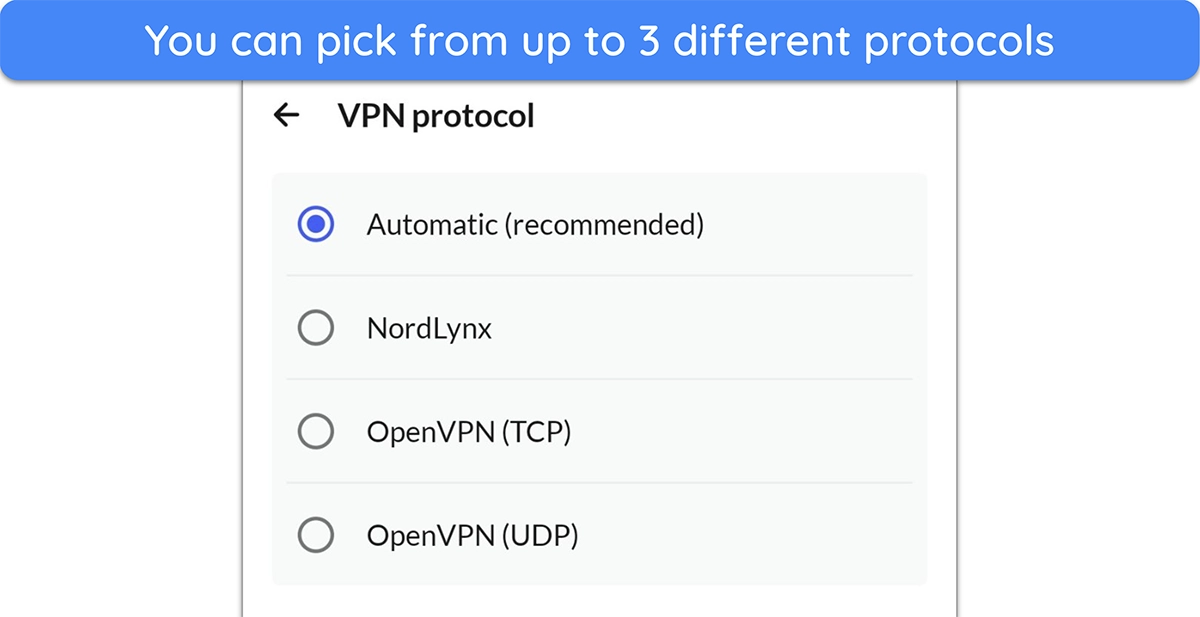
NordLynx is NordVPN’s proprietary protocol based on WireGuard. It provides airtight security without compromising speeds and is generally the best option. As for the OpenVPN protocols, TCP is more stable but slower than UDP, while UDP is faster and better for high-bandwidth tasks. You can also choose the ‘Automatic’ option to let the app decide the best protocol for you.
Split Tunneling
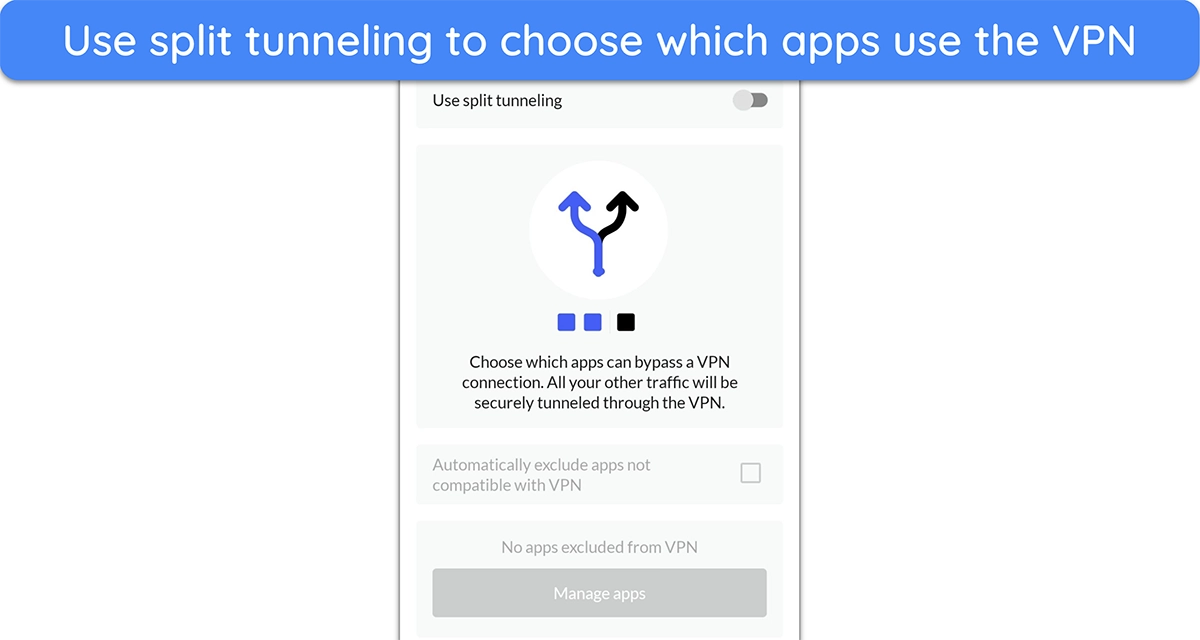
Split tunneling is a useful feature that lets you customize which apps use the VPN tunnel. This is useful when you want to stay on your local connection for banking and shopping apps. It’s easy to set this feature up from the settings menu — just enable it and pick the apps you want to exclude from the VPN tunnel.
Noteworthy NordVPN Features on Android
Meshnet
Meshnet is among NordVPN’s best features and is available in the Android app. Meshnet lets you set up your own network of devices , letting you safely share files and media, set up gaming servers, and more while staying completely safe.
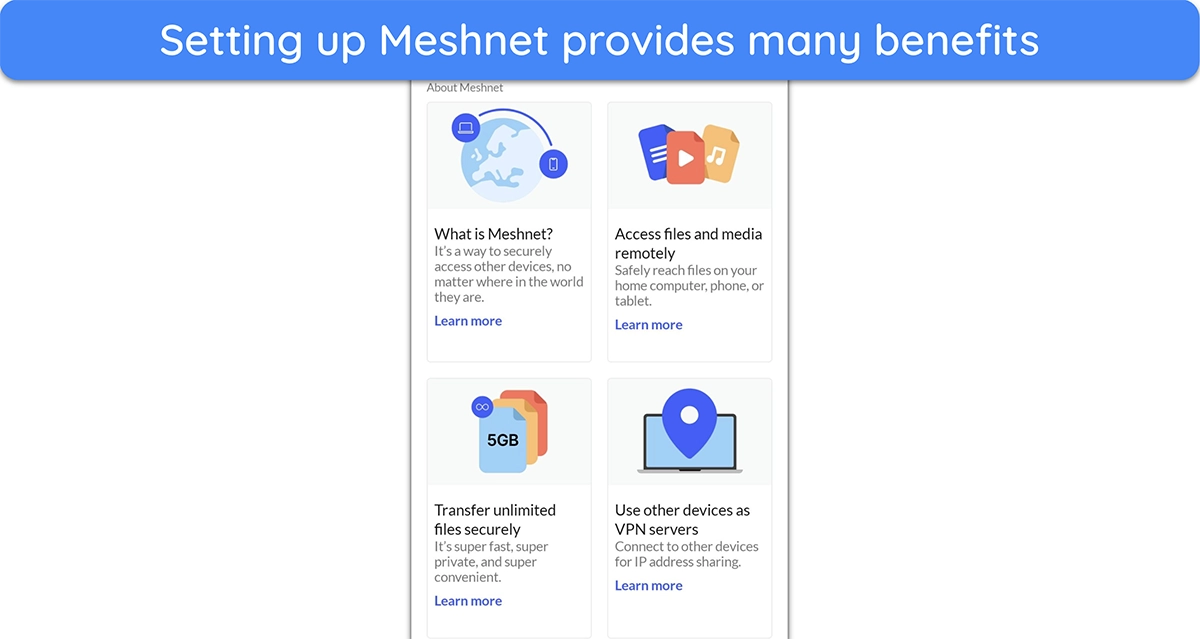
Meshnet even lets you use another device on the network as a VPN server , sharing its IP address. This is especially useful when you’re on the go and want to access a service using the IP address of your home network.
Specialty Servers
Another highlight is that NordVPN’s Android app includes all its specialty servers , including the following options:
- P2P — allows P2P traffic to ensure safe and smooth torrenting.
- Obfuscated — masks your VPN activity to bypass VPN detection mechanisms like deep packet inspection.
- Onion over VPN — routes your traffic through the VPN server and the Tor network for added safety.
- Double VPN — routes your traffic through two VPN servers for an extra layer of protection.
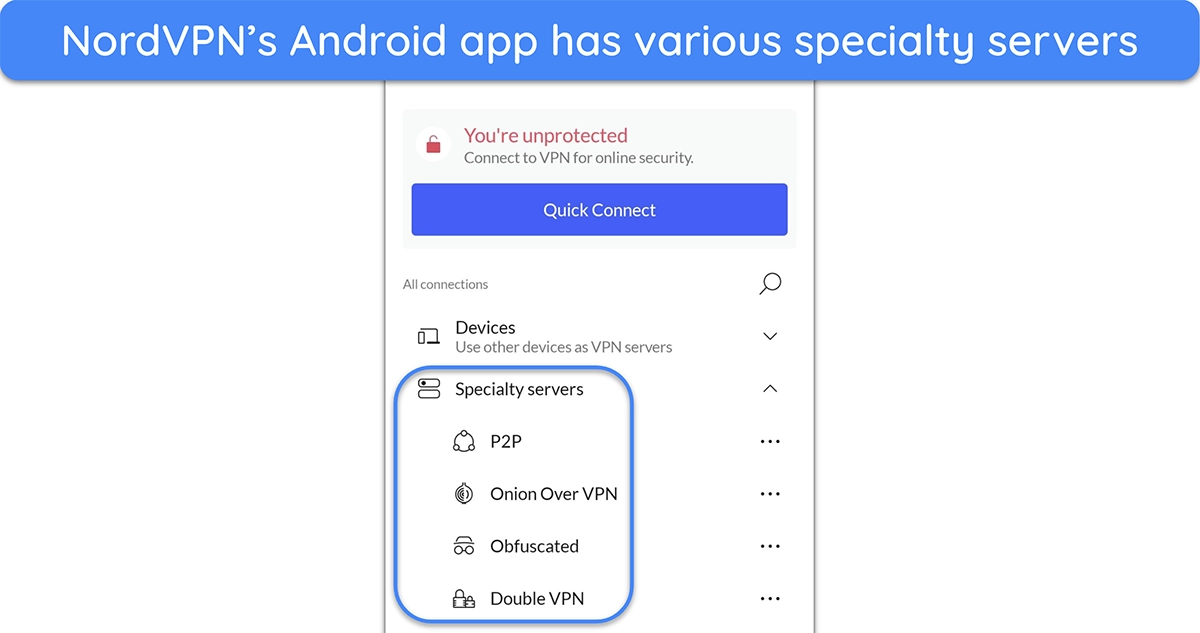
You can easily find all the specialty servers on the front page of NordVPN’s Android app. Note that they may be a bit slower than the usual NordVPN servers for tasks like gaming, streaming, and web browsing, so you should only use them when safety is a top priority.
Threat Protection
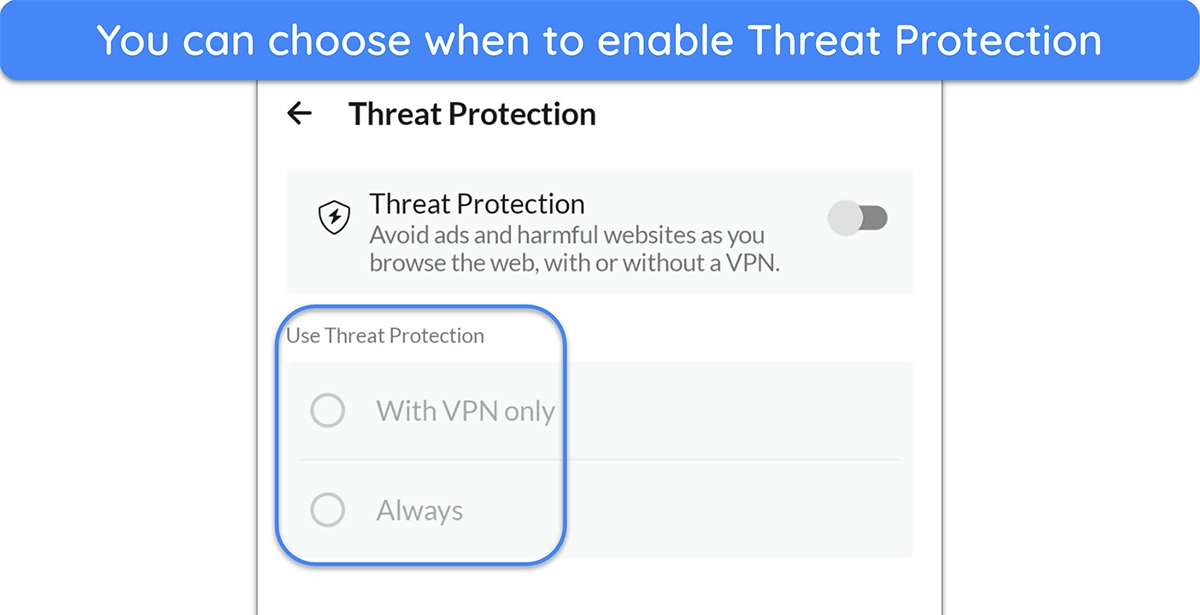
Threat Protection blocks annoying ads and malicious websites , and it’s available in NordVPN’s Android app. What’s great about this feature is that you can choose to enable it even when you aren’t connected to NordVPN, ensuring your browsing activity stays protected at all times.
Dark Web Monitor
NordVPN’s Dark Web Monitor informs you about leaked credentials that get compromised in data breaches. Once enabled, this feature will scan your NordVPN account email and let you know if your accounts on other websites were leaked.
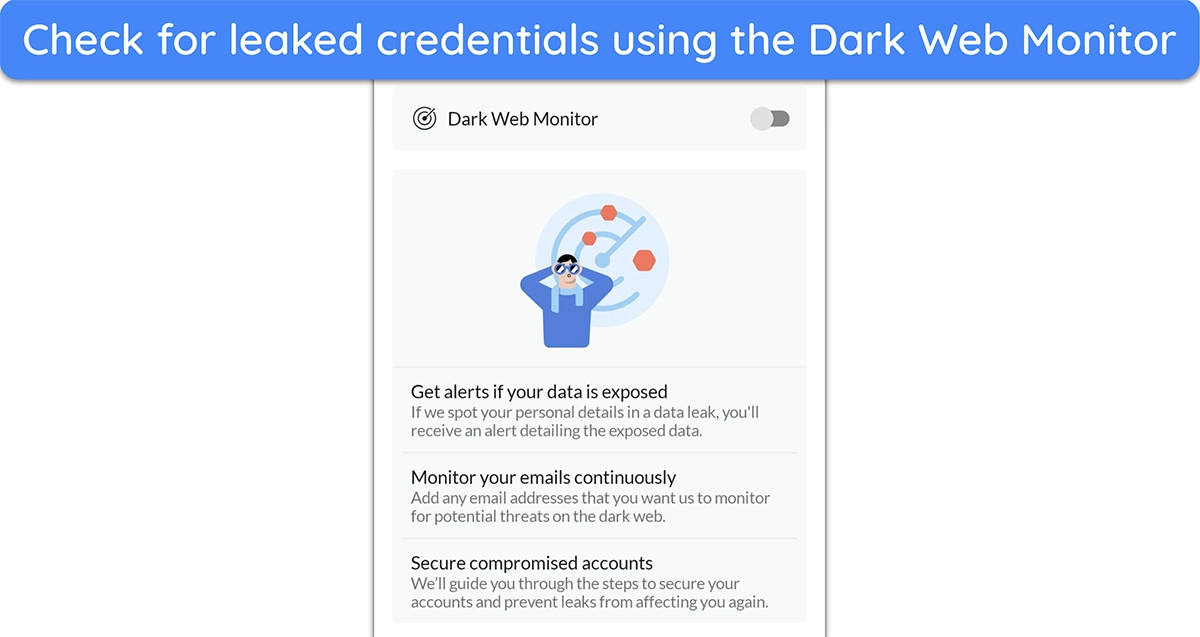
I like that NordVPN’s Dark Web Monitor isn’t limited to the email you purchased with . You can add multiple extra emails to monitor, and the app will let you know whenever any of them are involved in data breaches.
Tapjacking Protection
Tapjacking protection is a simple yet effective tool that keeps malicious services or websites from tricking you. It lets you know when an overlay is tricking you into clicking something dangerous , ensuring you don’t accidentally compromise your security or privacy.
Safeguard Your Android Connection Using NordVPN
Regardless of your chosen option, NordVPN provides a 30-day money-back guarantee for all options purchased from the official website. This lets you try the app risk-free and see if it suits your needs before committing to your purchase.
Try NordVPN for Android
